How to Fix Android Apps Keep Stopping
Have you ever opened an app on your Android phone and suddenly seen the message “App keeps stopping”? This problem can be annoying, especially when you need to use the…
Have you ever opened an app on your Android phone and suddenly seen the message “App keeps stopping”? This problem can be annoying, especially when you need to use the app quickly.
The apps keep stopping issue usually happens because of temporary bugs, outdated apps, corrupted cache files, low storage, Android updates, or compatibility problems. Sometimes, only one app crashes, while in other cases, multiple apps may stop working.
The good news is that most app crashes can be fixed with a few simple steps. In this guide, we will explain why Android apps crash and how you can fix them safely without complicated methods.
Why Do Apps Keep Stopping on Android?
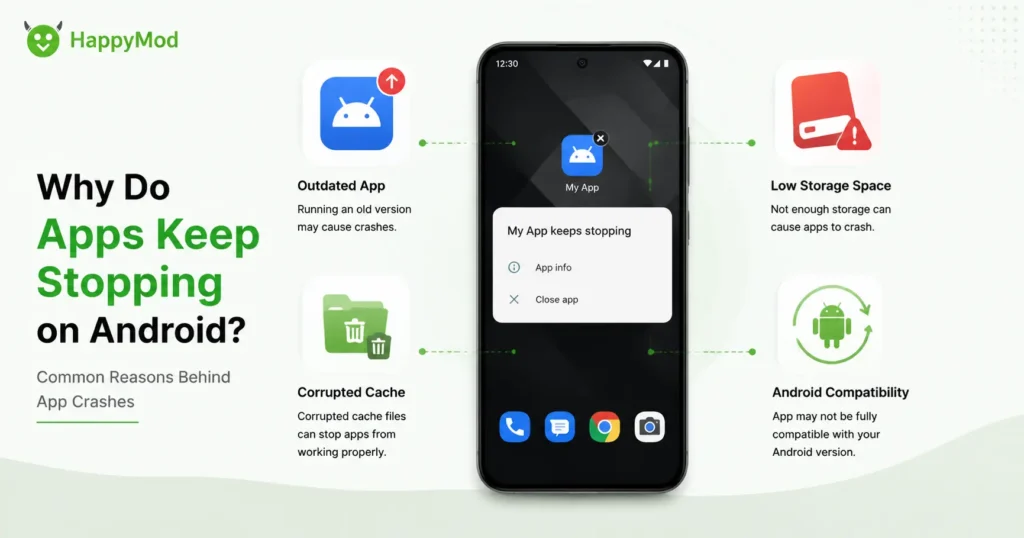
Android apps can stop working for different reasons. The problem is not always with the app itself. Sometimes your phone settings, storage, or Android version can also cause crashes.
Here are the most common reasons:
1. Outdated App Version
Developers regularly release updates to fix bugs, improve security, and support newer Android versions.
If you are using an older version of an app, it may become unstable and start crashing.
Updating the app from the Google Play Store can often solve the problem.
2. Corrupted Cache Files
Apps store temporary files called cache data to load faster. Over time, these files can become damaged or outdated.
A corrupted cache can cause:
- App freezing
- Slow performance
- Apps closing automatically
- Loading problems
Clearing the app cache is one of the easiest ways to fix Android apps crashing problems.
3. Low Storage Space
Your phone needs free storage to run apps properly. When your device has very little available space, apps may fail to save temporary files and start crashing.
Check your storage:
Settings → Storage
Try removing unnecessary files, unused apps, or large downloads if your storage is almost full.
4. Android Version Compatibility Problems
Some apps require newer Android versions to work correctly. If your phone runs an older Android version, the app may not function properly.
If you recently installed an app and it immediately crashes, the problem may be related to your device requirements or Android version. You can check app compatibility on Android to understand whether your phone supports the app properly.
You can also read our guide on how to check app compatibility on Android before installing apps.
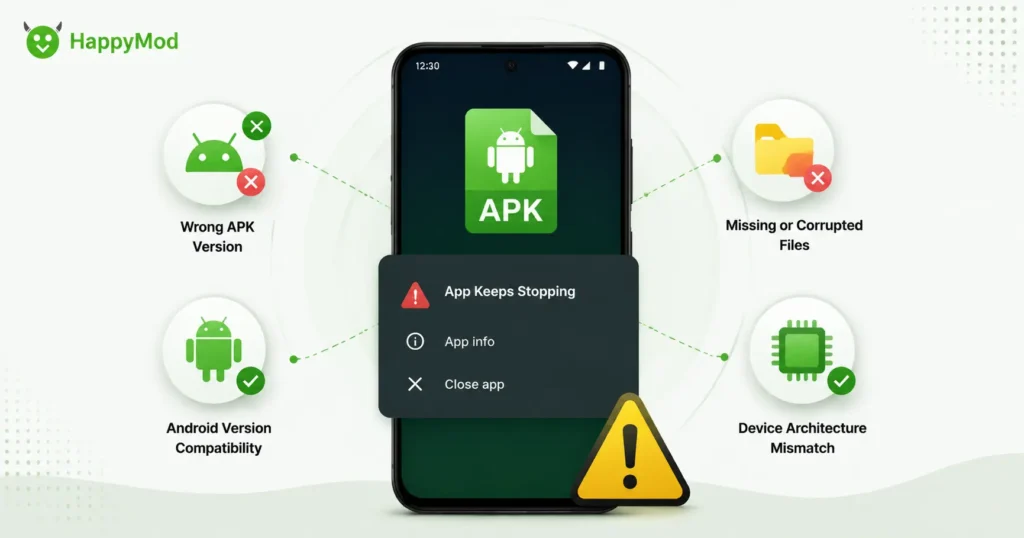
5. Incorrect APK Installation
Apps installed outside the Play Store can sometimes crash because of:
- Wrong APK version
- Unsupported Android version
- Incorrect architecture
- Missing additional files
- Corrupted download
If you use APK files, always make sure you download the correct version for your device.
For HappyMod users, you can also check our guide about fixing HappyMod installation problems if an APK is not working correctly.
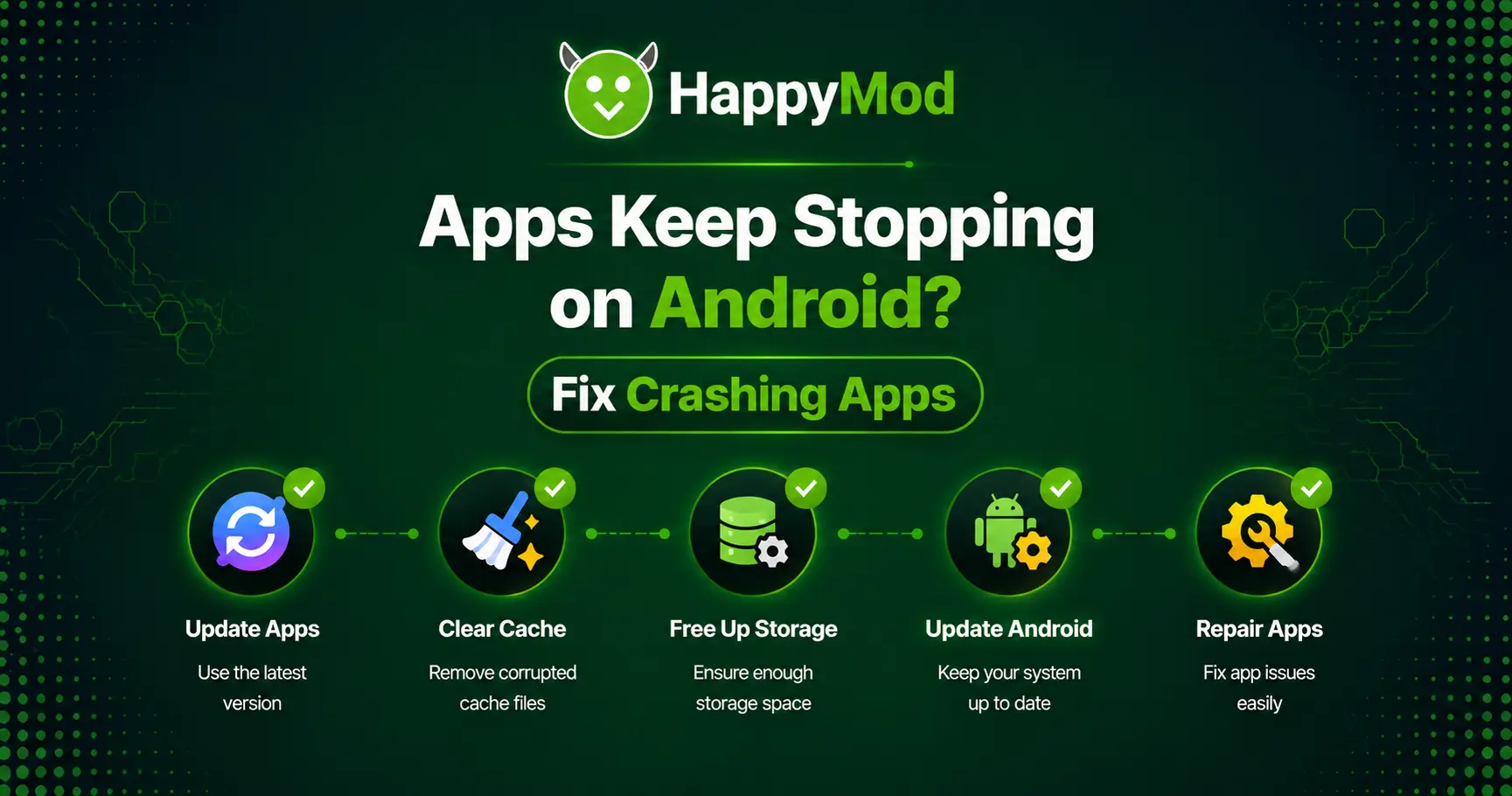
How to Fix Apps Keep Stopping on Android
Try these solutions one by one. Start with the easiest fixes first.
1. Restart Your Android Phone
A simple restart can fix many temporary Android problems.
Restarting your phone helps refresh:
- Background services
- Memory usage
- System processes
To restart:
- Press and hold the power button.
- Select Restart.
- Open the app again after your phone turns on.
If the problem was caused by a temporary system issue, the app may start working normally.
2. Update the App From Google Play Store
An outdated app can contain bugs that cause frequent crashes.
To update an app:
- Open Google Play Store.
- Tap your profile icon.
- Select Manage apps & device.
- Update the affected app.
Google also recommends checking app updates, restarting your device, and clearing app data when an installed Android app is not working properly.
Check this Source: Google Android Help
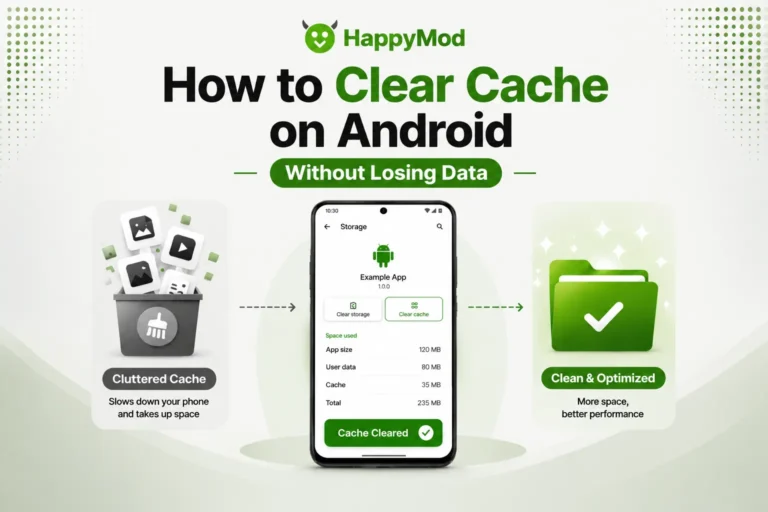
3. Clear App Cache
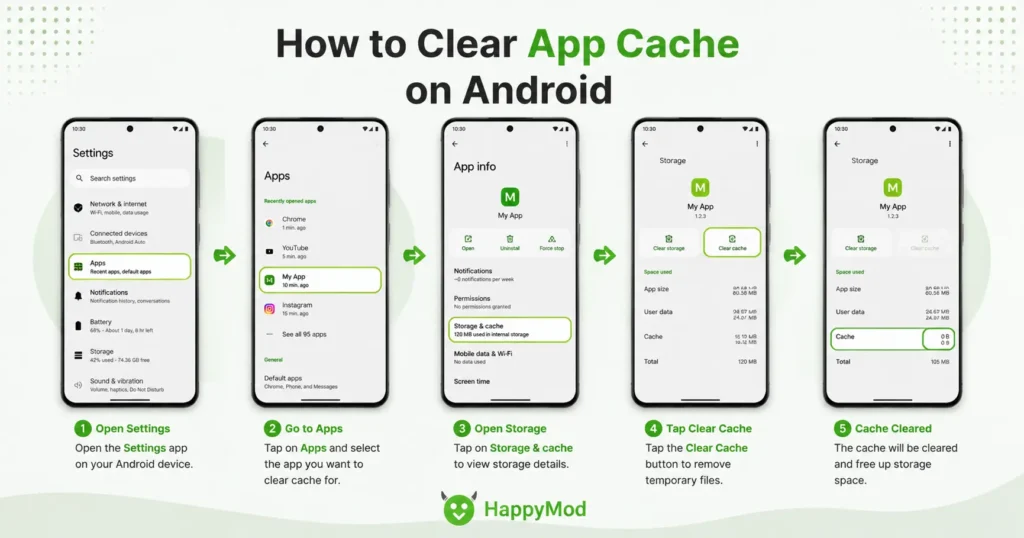
Clearing cache removes temporary files without deleting your personal data.
To clear cache:
- Open Settings.
- Go to Apps.
- Select the app that keeps crashing.
- Tap Storage.
- Select Clear Cache.
After clearing the cache, open the app again and check if the problem is solved.
4. Clear App Data
If clearing cache does not work, you can try clearing app data.
However, remember:
- You may be logged out.
- Saved settings may reset.
- Offline data may be removed.
To clear app data:
- Open Settings.
- Go to Apps.
- Select the app.
- Tap Storage.
- Choose Clear Data.
Use this option only when necessary.
5. Check Your Phone Storage
Low storage is a common reason why Android apps crash.
Your phone needs enough free space to:
- Create temporary files
- Install updates
- Run apps smoothly
Remove:
- Unused apps
- Duplicate photos
- Large videos
- Old downloads
After freeing storage, restart your phone and test the app again.
6. Update Android System
Sometimes apps stop working after Android updates because the app needs a newer version or a bug fix.
Check for updates:
- Open Settings.
- Select System Update.
- Install available updates.
Keeping Android updated improves compatibility and performance.
7. Check App Permissions
Some apps need specific permissions to work correctly.
For example:
- Camera apps need camera access.
- Navigation apps need location access.
- File apps need storage access.
To check permissions:
- Open Settings.
- Select Apps.
- Choose the app.
- Tap Permissions.
- Allow required permissions.
Missing permissions can sometimes cause apps to close unexpectedly.
8. Reinstall the App
If an app is still crashing, reinstalling it may fix damaged installation files.
Before uninstalling:
- Make sure your account is synced.
- Backup important data.
- Check whether your progress is saved.
Then:
- Uninstall the app.
- Restart your phone.
- Install the app again.
Why Do Android Apps Close Automatically?
Many users search for why apps close by themselves. This usually happens because Android detects a problem and shuts down the app to protect system stability.
Common reasons include:
- Low RAM
- Corrupted app files
- Outdated software
- Storage problems
- Compatibility issues
- Faulty updates
If only one app crashes, the problem is usually related to that specific app.
If multiple apps crash together, the issue may be related to Android system files, storage, or recent updates.
How to Fix APK Apps That Keep Stopping
If you are using APK-based apps and facing installation or opening issues, you can also read our guide on how to fix HappyMod download and installation problems for common APK-related errors.
If an APK app keeps crashing, check:
Use the Correct APK Version
Different Android devices use different APK architectures:
- ARM64
- ARMv7
- x86
Installing the wrong version can cause crashes.
Check Android Requirements
Make sure:
- Your Android version is supported.
- Your phone has enough storage.
- The APK is designed for your device.
Download Complete Files
Some apps require additional files. Missing files can cause:
- Startup crashes
- Loading problems
- Missing features
How to Prevent Android Apps From Crashing
You can reduce future crashes by following these simple tips:
- Keep apps updated.
- Keep Android updated.
- Maintain free storage space.
- Avoid installing unknown APK files.
- Restart your phone regularly.
- Remove apps you no longer use.
- Download apps from trusted sources.
Frequently Asked Questions
1. Why do apps keep stopping on Android?
Apps keep stopping on Android because of outdated versions, corrupted cache files, low storage, software bugs, or compatibility problems. Updating the app and clearing cache often fixes the issue.
2. How do I stop apps from stopping?
You can stop apps from stopping by updating them, clearing cache, freeing storage, restarting your phone, checking permissions, and reinstalling problematic apps.
3. How do I make my apps stop crashing?
Keep your apps updated, remove unnecessary files, clear temporary cache, and make sure your Android version supports the app.
4. How do I fix Android system keeps stopping?
Restart your phone, update Android, clear cache, and check whether the problem started after a recent system update.
5. How do I clear the cache on my Android?
Go to:
Settings → Apps → Select App → Storage → Clear Cache
This removes temporary files without deleting your personal information.
6. Why does one app keep crashing?
One app usually crashes because of a bug, corrupted files, outdated software, or a problem with that specific app version.
7. How do I fix apps not responding on Android?
Restart your phone, close background apps, clear the app cache, update the app, or reinstall it if the problem continues.
8. What caused all the apps to crash?
If many apps crash at the same time, the cause may be a system update issue, low storage, damaged system files, or problems with Android services.
Final Thoughts
The apps keep stopping problem is common among Android users, but most cases can be fixed easily. Start with simple solutions like restarting your phone, updating apps, clearing cache, and checking storage.
If the problem continues, check compatibility, APK requirements, and Android updates. Avoid forcing apps to run on unsupported devices because this can create more problems.
With the right troubleshooting steps, you can usually get your favorite apps working smoothly again.
If you are looking for Android apps and updates, you can explore the latest HappyMod version for Android available on our website.