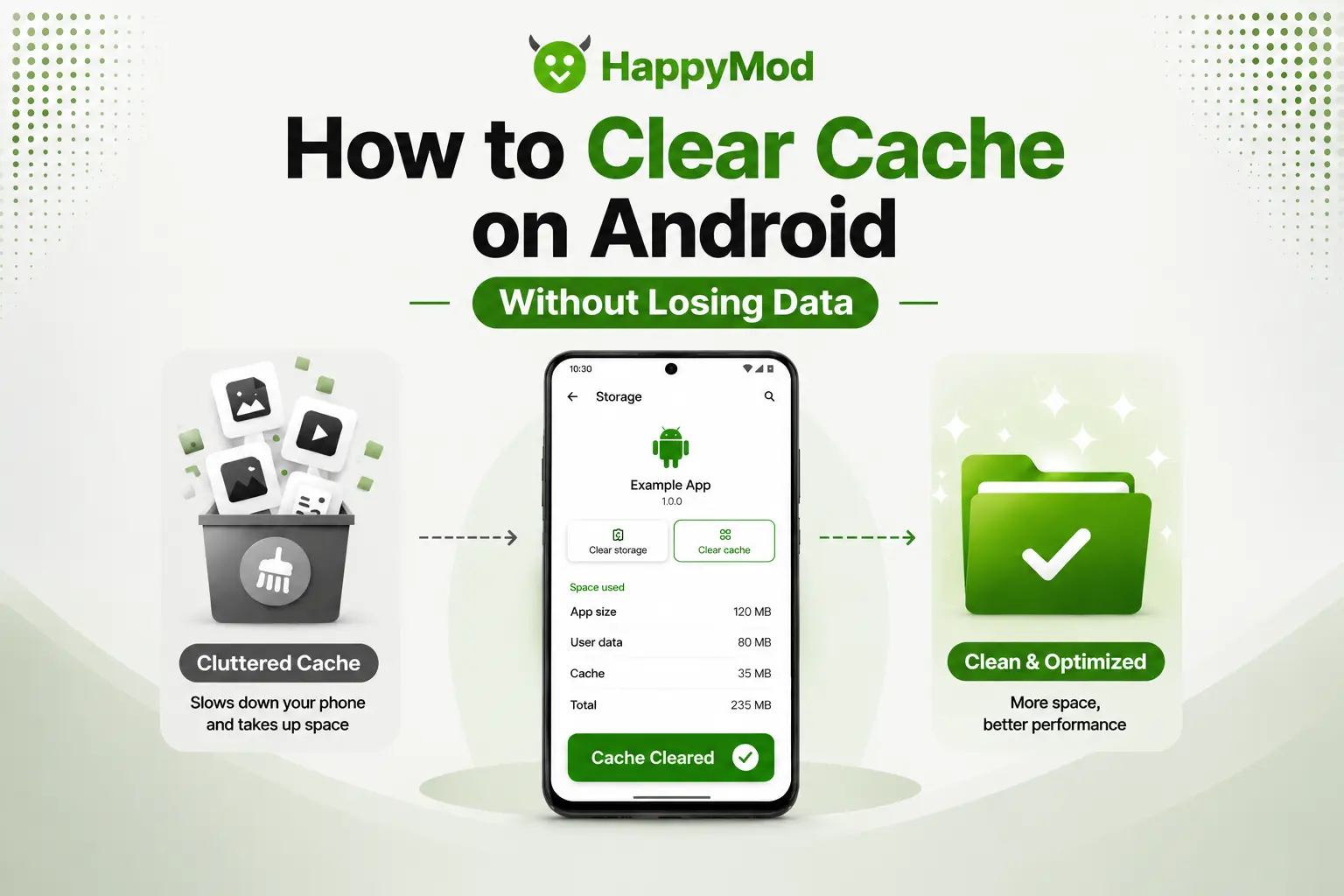
How to Clear Cache on Android Without Losing Data
Have you noticed your Android phone becoming slower over time? Maybe an app takes longer to open, freezes often, or stops working properly. In many cases, temporary files stored by…
Have you noticed your Android phone becoming slower over time? Maybe an app takes longer to open, freezes often, or stops working properly. In many cases, temporary files stored by apps can cause these issues.
Learning how to clear cache on Android safely can help you remove unnecessary temporary data and resolve common app issues without deleting your important files.
Many users avoid clearing cache because they think it will remove photos, contacts, or personal information. However, clearing cache works differently from clearing app data.
In this guide, we will explain what app cache is, how to clear it, what happens after clearing cache, and whether it is safe for your Android device.
What Is App Cache on Android?
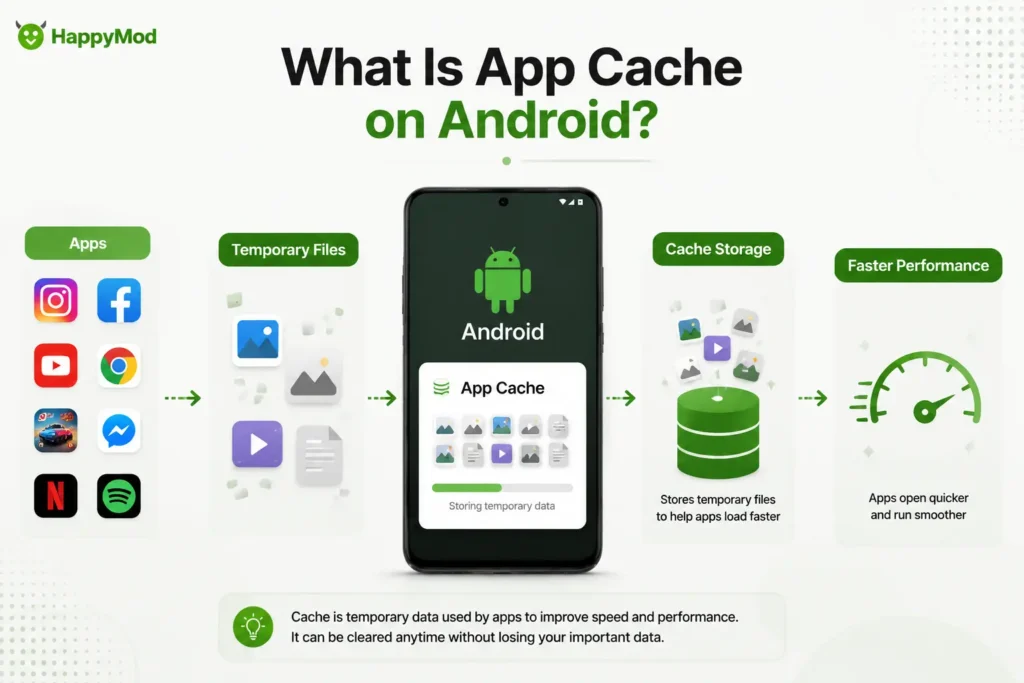
App cache is temporary data that Android apps store on your phone to work faster.
For example:
- A social media app may save images temporarily.
- A browser may save website files.
- A game may store temporary loading data.
Instead of downloading the same files again and again, apps use cached files to improve speed and performance.
Over time, cache files can become outdated or corrupted. This may cause problems like:
- Apps loading slowly
- Apps freezing
- Apps crashing
- Incorrect information showing inside an app
- Storage space getting reduced
Clearing cache removes these temporary files and allows the app to create fresh ones.
Does Clearing Cache Delete Anything on Android?
No. Clearing cache does not delete your important personal data.
When you clear app cache, Android removes temporary files only.
It does not remove:
- Photos
- Videos
- Contacts
- Documents
- Saved accounts
- Messages
- Personal files
However, clearing app data is different. App data resets the application and may remove settings, downloads, or login information.
This is why it is important to understand the difference between clearing cache and clearing data.
Clear Cache vs Clear Data: What Is the Difference?
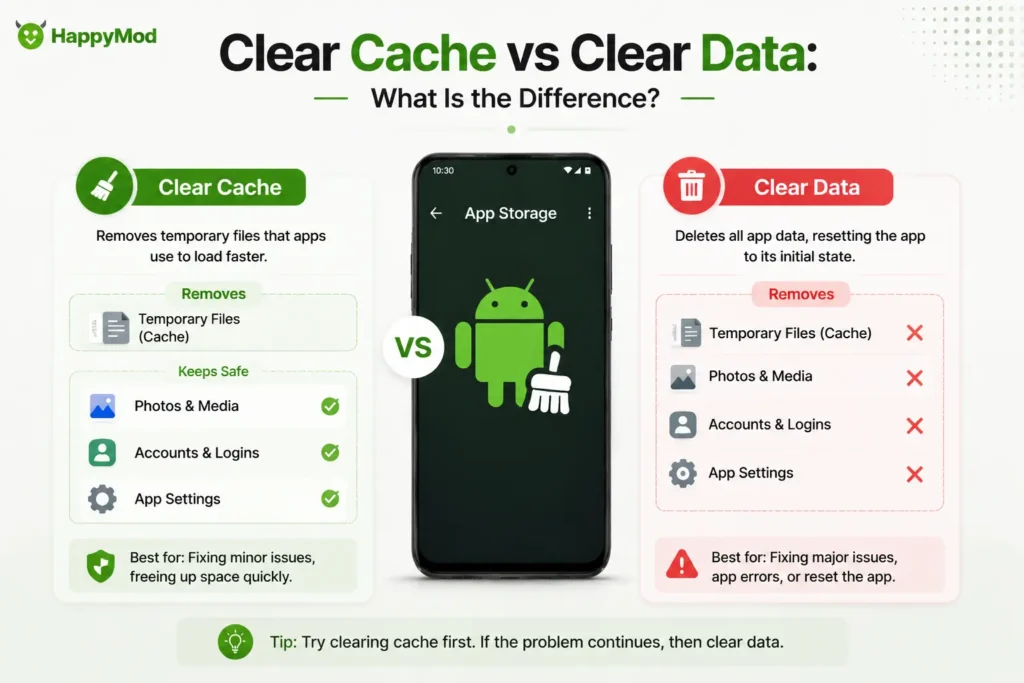
Many Android users confuse these two options.
| Clear Cache | Clear Data |
| Removes temporary files | Resets the app completely |
| Keeps your account information | May remove login details |
| Safe for regular troubleshooting | Used for serious app problems |
| Does not remove personal files | May remove app settings |
If an app is slow or has minor problems, clearing cache is usually the safer first step.
How to Clear App Cache on Android
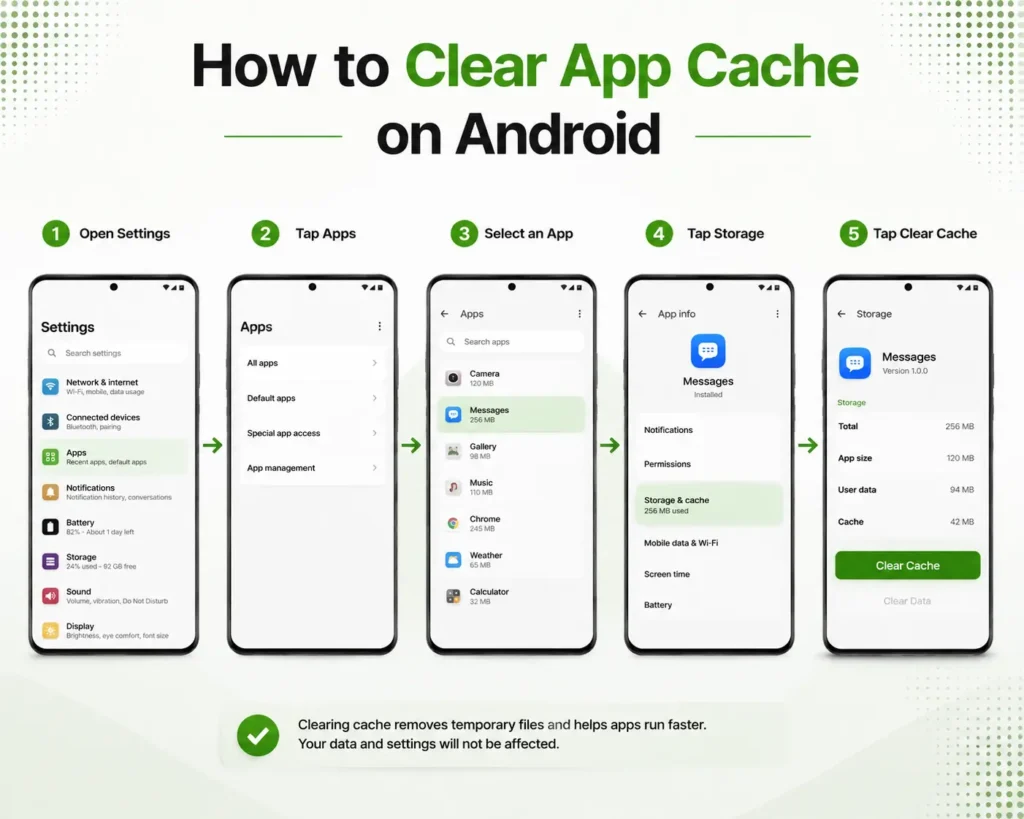
The steps may look slightly different depending on your phone brand, but most Android devices follow a similar process.
Follow these steps:
- Open Settings on your Android phone.
- Tap Apps or Applications.
- Select the app you want to fix.
- Tap Storage.
- Choose Clear Cache.
After clearing the cache, open the app again and check whether the problem is solved.
You can repeat these steps for other apps that are causing problems.
When Should You Clear App Cache?
You do not need to clear the cache every day. Android manages temporary files automatically.
However, clearing cache can help when:
- An app becomes slow
- An app keeps freezing
- An app crashes frequently
- Images or pages do not load correctly
- An app behaves differently after an update
- Your phone storage is getting full
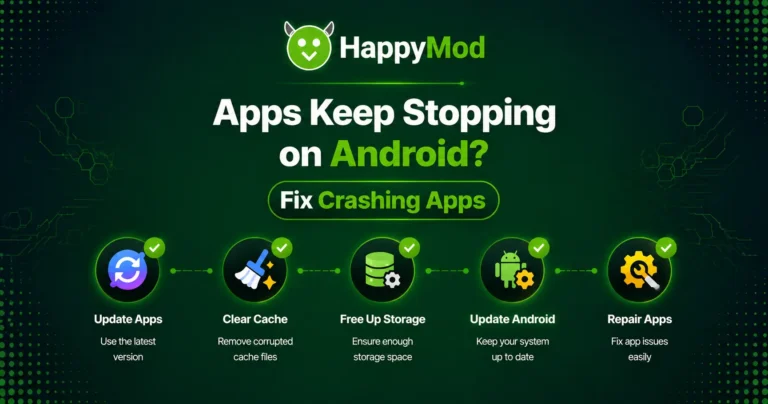
If an app continues crashing after clearing cache, the problem may be related to another issue. You can also learn how to fix apps that keep stopping on Android for additional troubleshooting steps.
How to Clear Cache on Samsung Android Phones
Samsung devices use a slightly different menu layout.
Follow these steps:
- Open Settings.
- Select Apps.
- Choose the app.
- Tap Storage.
- Select Clear Cache.
Samsung phones may automatically rebuild cache files after you use the app again.
How to Clear Cache on Xiaomi, Redmi, and Other Android Phones
Android manufacturers often customize their settings menus.
For Xiaomi, Redmi, and similar devices:
- Open Settings.
- Go to Apps.
- Select Manage Apps.
- Choose the app.
- Tap Storage.
- Select Clear Cache.
If you cannot find the option, use the Settings search bar and type “cache”.
What Happens When You Clear App Cache on Android?
After you clear cache, several things can happen:
Apps May Open Freshly: The app removes old temporary files and creates new ones.
Some Apps May Load Slightly Slower First: Because the app needs to rebuild cache files again.
Storage Space May Increase: Cached files take up storage, so removing them can free a small amount of space.
Your Personal Data Remains Safe: Your photos, accounts, and saved files stay unchanged.
Can Clearing Cache Fix Android Apps Crashing?
Yes, clearing cache can fix some app crashes, especially when damaged temporary files are causing the problem.
However, cache is not always the reason behind crashes.
Apps may still crash because of:
- Outdated app versions
- Android compatibility problems
- Low storage
- Missing permissions
- Device limitations
If clearing cache does not help, check whether your phone supports the app requirements. You can also check app compatibility on Android to identify possible compatibility problems.
Should You Use Android Cache Cleaner Apps?
Many apps claim they can automatically clean your phone cache.
However, modern Android versions already manage temporary files effectively.
Third-party cleaner apps are often unnecessary and may:
- Show excessive advertisements
- Request unnecessary permissions
- Use extra battery
- Run constantly in the background
Instead of installing a cleaner app, you can manually clear cache when you actually need it.
How Often Should You Clear Cache on Android?
There is no fixed schedule for clearing cache.
You should clear cache only when you notice problems.
Good times to clear cache include:
- After an app starts crashing
- When an app becomes slow
- After a major app update
- When temporary files take too much storage
Regularly clearing cache does not automatically make your phone faster. Android needs some cache files to improve app performance.
What Is the Fastest Way to Clear Android Cache?
The fastest method is clearing the cache for individual apps causing problems.
For most Android phones:
Settings → Apps → Select App → Storage → Clear Cache
This method is safer than clearing everything because you only remove unnecessary files from problematic apps.
Frequently Asked Questions
1. How do I clear all caches on Android?
Android does not always provide a single button to clear every app cache. You can clear cache individually by opening Settings, selecting Apps, choosing an app, and tapping Clear Cache.
2. Does clearing the cache delete anything on Android?
No. Clearing the cache only removes temporary files. It does not delete photos, videos, contacts, messages, or personal documents.
3. Is it better to clear storage or clear cache?
For normal problems, clear cache first. Clearing storage or app data resets the app and may remove saved settings or login information.
4. What will happen if I clear the cache of all apps?
Your apps will remove temporary files and rebuild the cache when you use them again. Your personal information will remain safe.
5. What is the disadvantage of clearing the cache?
The main disadvantage is that apps may load slightly slower the first time after clearing cache because they need to create new temporary files.
6. What happens if you clear cached data on Android?
Android removes stored temporary files created by apps. The app remains installed, and your personal data stays unchanged.
7. Will I lose anything if I clear the cache?
No. Clearing the cache does not remove your important files or account information.
Final Thoughts
Knowing how to clear cache on Android safely can help you resolve many common phone issues. It is a simple troubleshooting step that can improve app performance, remove corrupted temporary files, and free some storage space.
Remember that clearing cache is different from clearing app data. Cache removal is usually safe and does not delete your personal information.
If an app continues causing problems after clearing cache, check other possible causes like updates, storage, or compatibility issues. Using the right troubleshooting method will help keep your Android experience smooth.