App Not Compatible With Device? Check Compatibility
Seeing the app not compatible with device message can be frustrating, especially when the same app works normally on another phone. However, this message does not always mean that your…
Seeing the app not compatible with device message can be frustrating, especially when the same app works normally on another phone. However, this message does not always mean that your device has a fault.
An app may require a newer Android version, specific hardware, a supported processor type, or availability in a particular country. Developers can also limit an app to selected screen sizes, device models, or operating-system versions. According to Google Play’s app compatibility guidance, app availability can depend on factors such as Android version, device type, screen requirements, hardware features, and location.
Fortunately, you can check most compatibility requirements before downloading or installing an app. This guide explains what the message means, how Android app compatibility works, and what you can safely do when an app does not support your phone.
What Does “App Not Compatible With Device” Mean?
The app not compatible with device message means that your phone does not meet one or more requirements set for the app.
These requirements may relate to:
- Your Android version
- Your phone’s processor
- Available RAM and storage
- Screen size or resolution
- Required hardware features
- Your country or region
- Google Play certification
- Restrictions added by the developer
Google Play does not decide compatibility based on one factor alone. App developers specify which Android versions, hardware features, screen types, and devices their apps support. Google Play then uses that information to decide whether an app should appear as available for your device.
This is why one person may see an Install button while another person sees a compatibility warning for the same app.
How to Check App Compatibility on Android
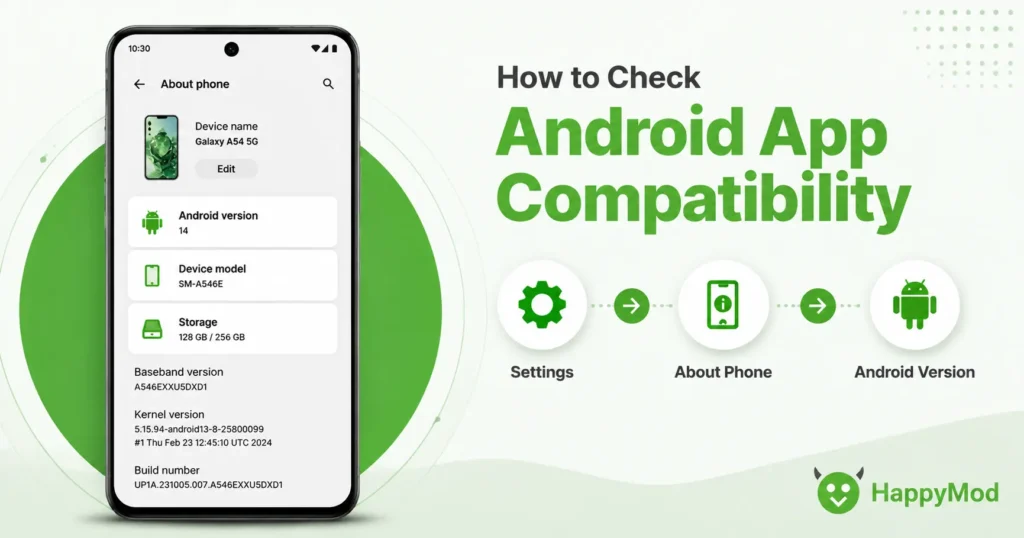
Before downloading an app, compare its requirements with your phone’s specifications. Start with the Android version, then check hardware and storage requirements.
Check Your Android Version
Many apps require a minimum Android version. For example, an app designed for Android 11 or later may not install on a phone running Android 8.
To check your Android version:
- Open Settings.
- Scroll down and tap About Phone.
- Find Android Version or Software Information.
- Note the version installed on your device.
The exact menu names may vary slightly between Samsung, Xiaomi, OnePlus, Google Pixel, and other Android phones.
Once you know your version, compare it with the minimum Android requirement listed on the app’s official page.
Check the App’s Minimum Android Version
You can usually find the minimum requirement in one of these places:
- Google Play listing
- App developer’s official website
- Official support documentation
- File-information section on an APK page
- App release notes
Do not assume that the newest version will work on every Android phone. Developers sometimes stop supporting older operating systems after major updates.
If the newest release does not support your phone, an older version may still work. For example, users with older Android devices can review the requirements for HappyMod 3.2.5 for older Android devices instead of immediately installing the newest release.
Always confirm that the older version supports your Android system and comes from a source you trust.
Check RAM and Free Storage
Low storage does not always cause an official compatibility message, but it can stop an otherwise compatible app from installing or working correctly.
Check your available storage by opening:
Settings → Storage
Try to keep more free space than the app’s listed download size. Android may need additional room to unpack installation files, save temporary data, and download updates.
RAM also affects performance. A demanding game may technically install on a low-end phone but crash, freeze, or close because the device does not have enough memory.
Check Required Hardware
Some apps depend on specific hardware features. These may include:
- NFC
- GPS
- Bluetooth
- A front or rear camera
- A fingerprint sensor
- A gyroscope
- A specific graphics processor
- Calling or mobile-network support
For example, a contactless payment app may require NFC. An augmented-reality app may need a supported camera and motion sensors. If your phone lacks the required component, updating Android will not solve the problem.
Check Country or Region Availability
An app may support your phone but still remain unavailable in your country.
Developers can release an app only in selected regions because of licensing, language support, legal requirements, server availability, or testing plans.
If the app is not officially available in your country, check the developer’s website for an announcement. Avoid changing system settings or downloading unknown files simply to bypass a regional restriction.
How to Check APK Compatibility Before Downloading
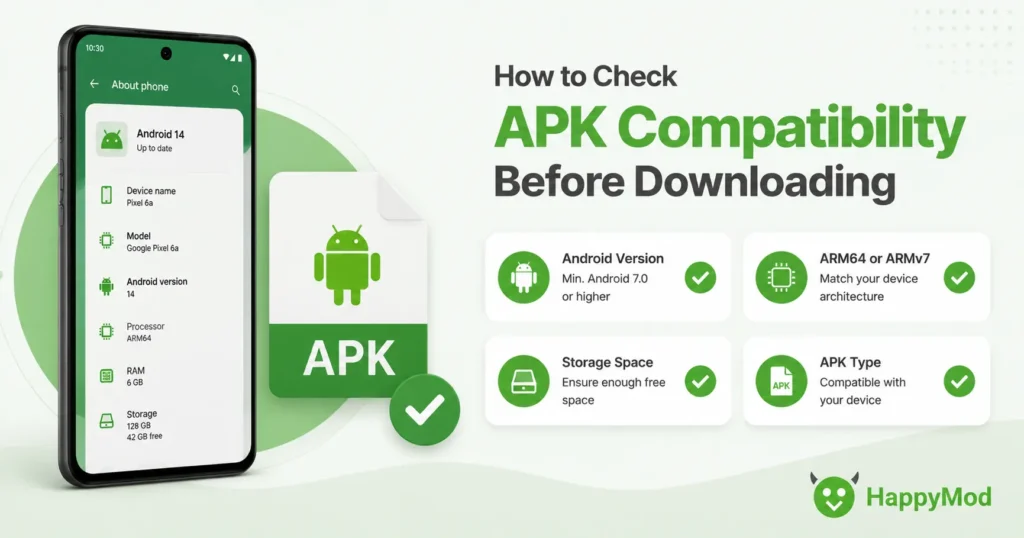
An APK file must match both your Android version and your device architecture. Installing the wrong variant may produce a parsing error, installation failure, or immediate crash.
Before downloading an APK, check the following information:
- Minimum Android version
- Supported processor architecture
- Package type
- File version
- Required additional files
- Screen or device requirements
Understand ARM64, ARMv7, and x86
Android devices can use different processor architectures.
Common labels include:
- arm64-v8a: 64-bit ARM processors
- armeabi-v7a: 32-bit ARM processors
- x86: 32-bit Intel-based systems
- x86_64: 64-bit Intel-based systems
- Universal: Designed to include support for multiple architectures
Most newer Android phones use arm64-v8a. Older or less powerful devices may use armeabi-v7a.
Android’s official developer documentation identifies armeabi-v7a as the 32-bit ARM ABI and arm64-v8a as its 64-bit equivalent.
Do not select an APK variant randomly. A file made only for a different architecture may fail even when your Android version appears suitable.
Check Whether the App Uses Split APKs
Some modern apps use several installation files instead of one standard APK. These packages may include:
- A base APK
- Language files
- Screen-density files
- Processor-specific files
- Additional resources
A single incomplete file may not install correctly. Confirm the package format and follow only the app developer’s approved installation method.
Why Is an App Not Compatible With Your Device?
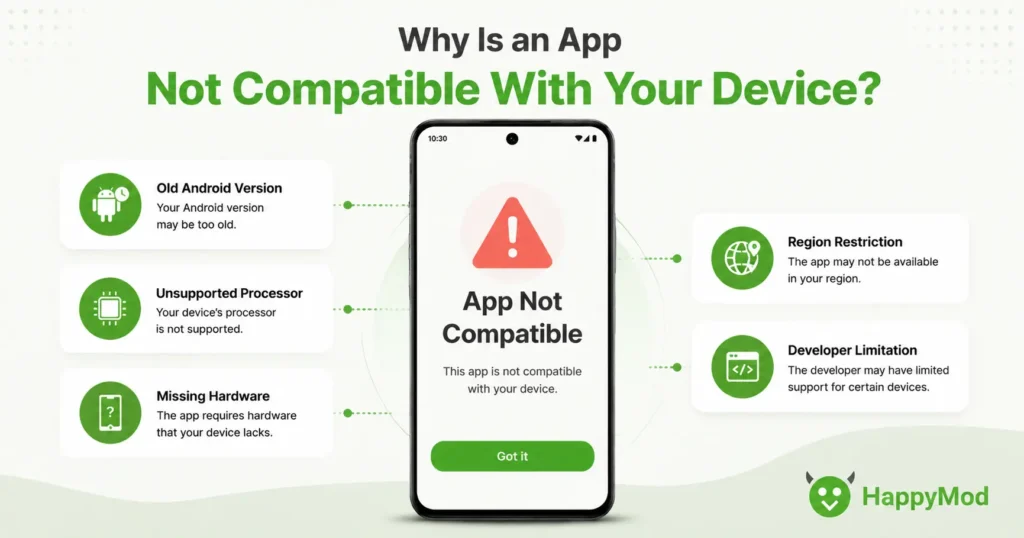
Several issues can trigger the app not compatible with device warning.
1. Your Android Version Is Too Old
This is one of the most common causes. The app may depend on features or security components that an older Android version does not provide.
2. Your Phone Uses an Unsupported Processor
The Android version may be correct, but the APK architecture may not match your device.
3. Required Hardware Is Missing
The app may need NFC, GPS, a gyroscope, a specific camera feature, or stronger graphics support.
4. The Developer Excluded Your Device Model
Developers sometimes block models with known bugs, performance problems, or unsupported screen configurations.
5. The App Is Unavailable in Your Region
Your device may meet every technical requirement, but the developer may not offer the app in your country.
6. Your Device Is Not Play Protect Certified
Play Protect-certified devices have passed Android compatibility testing and can include licensed Google apps such as the Google Play Store. Google may limit access to some features when a device is not certified.
You can check the status by opening:
Google Play Store → Profile icon → Settings → About → Play Protect certification
7. The App Supports Only Certain Device Types
Some apps are designed only for:
- Phones
- Tablets
- Android TV
- Chromebooks
- Wear OS devices
- Automotive systems
An app built for one device category may not work on another.
How to Fix an App Not Compatible With Device
You cannot safely bypass every compatibility restriction. However, the following steps may help when the problem comes from outdated software or incorrect device information.
Update Android
Open:
Settings → System → Software Update
Install an official update if one is available. A newer Android version may provide the APIs and security components required by the app.
An update will not help when your device has unsupported hardware or no longer receives software upgrades.
Update Google Play Store and Google Play Services
Outdated Google components can sometimes display incorrect availability information or cause installation issues.
Update your apps through Google Play and restart the phone afterward.
Restart Your Phone
A restart refreshes Android services and clears temporary system problems. It is simple, but it can help when Google Play has not updated your device information correctly.
Clear the Google Play Store Cache
To clear the cache:
- Open Settings.
- Select Apps.
- Find Google Play Store.
- Tap Storage.
- Select Clear Cache.
Avoid clearing all app data unless necessary because you may need to sign in or restore certain preferences.
Confirm the Official Requirements
Visit the app developer’s official website and check:
- Supported Android versions
- Supported countries
- Required hardware
- Known device issues
- Latest update notes
This step can tell you whether the problem is temporary or whether the developer has permanently ended support for your phone.
Use an Older Supported Version Carefully
An older app version may support an older Android system, but it can also lack recent features, bug fixes, and security updates.
Only consider an older release when:
- Its requirements clearly match your phone
- The developer still allows that version to function
- You can verify the source
- The app does not involve banking or sensitive personal information
Users facing installation errors can also read the guide on how to fix HappyMod download and installation problems.
Contact the Developer
If your phone appears to meet every requirement, contact the app’s support team. Include:
- Phone model
- Android version
- App version
- Exact error message
- A screenshot of the issue
The developer may confirm a known bug or restore support in a future update.
Avoid Unsafe Compatibility Bypasses
Some online guides recommend rooting the phone, editing system files, spoofing the device model, or disabling security features.
These methods can:
- Reduce device security
- Cause apps to crash
- Expose personal data
- Break future system updates
- Trigger account or app restrictions
- Make the phone unstable
Do not force an installation when the app genuinely requires hardware or software that your phone does not have.
Why an App Installs but Does Not Work
Successful installation does not guarantee that an app will run correctly.
An app may install and then crash because of:
- Insufficient RAM
- Unsupported graphics hardware
- Missing additional resource files
- Incorrect APK architecture
- Outdated Google Play Services
- A manufacturer-specific software conflict
- Server-side restrictions
- Lack of support for that app version
For example, Android may accept a package because its minimum operating-system requirement matches your phone. However, the app may still need more memory or a stronger processor during use.
Start by restarting your phone, updating Android components, checking storage, and confirming that you installed the correct package variant.
Device Compatibility Checklist
Before installing an app, confirm each item below:
- Your Android version meets the minimum requirement.
- Your device uses a supported processor architecture.
- You have enough free storage.
- Your phone has the required hardware features.
- The app is available in your country.
- The app supports your type of device.
- Your device has Play Protect certification.
- You checked the developer’s official requirements.
- You selected the correct APK version or package format.
This quick check can prevent failed downloads, parsing errors, crashes, and wasted storage.
For the current Android requirements of the main app, visit the latest HappyMod version for Android.
Frequently Asked Questions
1. Why is an app not compatible with my device?
The app may require a newer Android version, different processor architecture, specific hardware, more powerful components, or availability in a supported country. The developer may also have excluded your phone model because of known problems.
2. How do I know if an app is compatible with my phone?
Check your Android version and phone specifications, then compare them with the app’s official requirements. Review the minimum operating system, supported architecture, required hardware, device type, and regional availability.
3. Can I make my Android device compatible with an app?
You may improve compatibility by installing official Android updates, updating Google Play components, or selecting the correct app version. However, you cannot safely add missing hardware or force support when the developer has excluded your device.
4. How do I check the minimum Android version for an app?
Look at the Google Play listing, the developer’s official website, release notes, or the file-information section on a trusted APK page. Compare that requirement with the Android version shown under your phone’s About section.
5. What does unsupported Android version mean?
It means the app does not officially support the Android version installed on your phone. The app may depend on newer software features, APIs, or security protections.
6. Why did an app become incompatible after an update?
The developer may have raised the minimum Android requirement, removed support for older processors, introduced new hardware needs, or excluded devices experiencing technical problems.
7. Can an APK be incompatible with an Android phone?
Yes. An APK can require a newer Android version or a different processor architecture. It may also depend on additional files or hardware that your phone does not support.
8. What is the difference between ARM64 and ARMv7?
ARM64, commonly listed as arm64-v8a, supports 64-bit ARM processors. ARMv7, commonly listed as armeabi-v7a, supports 32-bit ARM processors. You should choose the APK variant that matches your device.