HappyMod for PC: How to Use It on Windows 10 and 11
Many Android users enjoy using HappyMod for its large collection of modified apps and games. However, many people prefer using apps on a bigger screen because playing games or managing…
Many Android users enjoy using HappyMod for its large collection of modified apps and games. However, many people prefer using apps on a bigger screen because playing games or managing applications on a PC can feel easier and more comfortable.
This is why many users search for HappyMod for PC and want to know if they can install it on Windows 10 or Windows 11.
The short answer is that HappyMod is designed for Android devices, not Windows computers. However, you can still use it on a PC by creating an Android environment with the help of an Android emulator.
An emulator allows your Windows computer to run Android applications in a separate window. This means you can install HappyMod, browse apps, and use Android games while enjoying your PC’s larger display, keyboard, and mouse controls.
Before starting the setup process, users can check the latest HappyMod 3.3.2 version available on our website, and then continue with the PC installation steps.
In this guide, we will explain how HappyMod works on Windows, what you need before installing it, how to set it up, common problems, and important things to check before using any third-party APK file.
Can You Use HappyMod on a Windows PC?
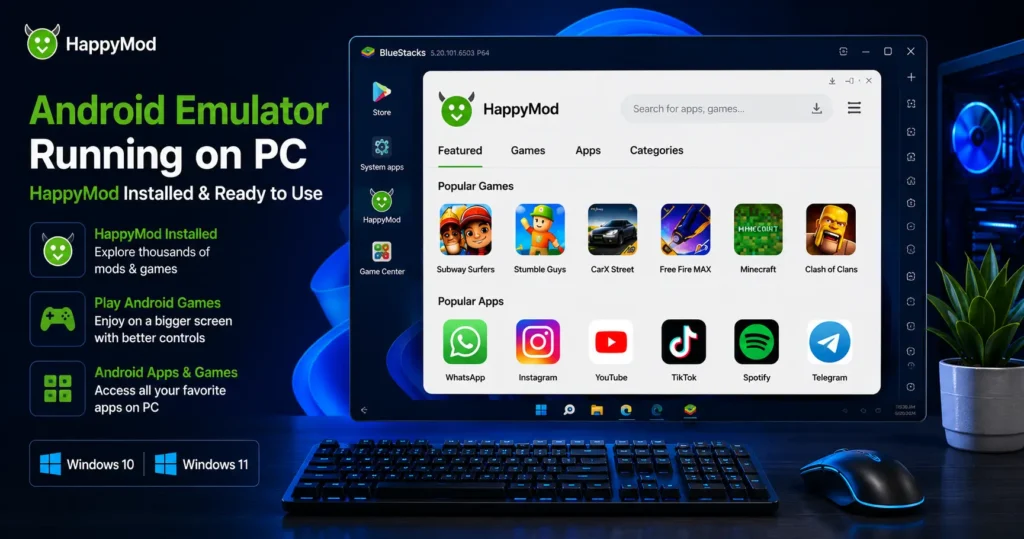
HappyMod does not have an official Windows desktop version. It is an Android application that works with Android operating systems.
Windows computers and Android phones use different systems, which means an Android APK file cannot normally open directly on a Windows computer.
This is where Android emulators are useful.
An Android emulator creates a virtual Android device inside your Windows PC. After installing an emulator, you can open Android apps just like you would on a smartphone or tablet.
For example, the process usually looks like this:
Windows PC → Android Emulator → HappyMod APK → Android apps and games
This method is commonly used by people who want to test Android apps, play mobile games on a bigger screen, or use Android applications when they do not have access to a phone.
What You Need Before Installing HappyMod on PC
Before setting up HappyMod on your computer, it is important to make sure your system can handle an Android emulator.
Some emulators can use a good amount of computer resources, especially when running larger games.
Here are the basic requirements:
| Requirement | Recommended |
| Operating System | Windows 10 or Windows 11 |
| RAM | 4GB minimum, 8GB recommended |
| Storage | Enough free space for emulator and apps |
| Processor | Modern Intel or AMD processor |
| Internet Connection | Stable connection for downloads and updates |
A computer with better hardware will usually provide a smoother experience. If your PC has limited RAM or an older processor, you may experience slow loading times or performance issues.
Before installing anything, also make sure you have enough storage space. Android games can become large after updates and additional files.
How to Install HappyMod for PC on Windows 10 and Windows 11
Using HappyMod on Windows requires an Android emulator. The exact steps may vary slightly depending on the emulator you choose, but the general process remains similar.
1. Choose an Android Emulator
First, install a trusted Android emulator that supports your Windows version.
Popular options include:
- BlueStacks
- NoxPlayer
- MEmu
Each emulator has different features, performance levels, and system requirements.
Choose one that works well with your computer instead of installing multiple emulators at the same time.
2. Install the Emulator on Your PC
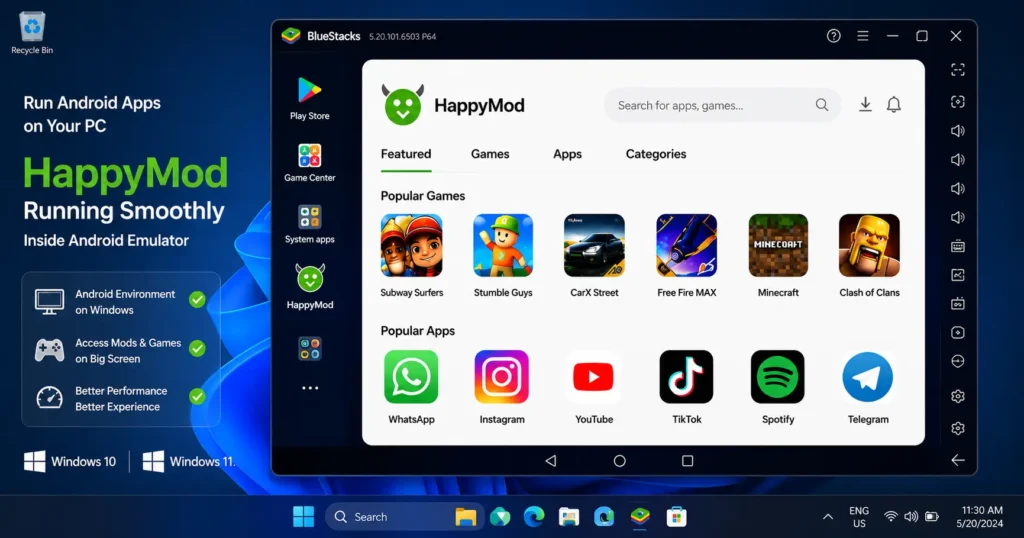
After downloading the emulator:
- Open the installer file.
- Follow the setup instructions.
- Allow the installation process to complete.
- Open the emulator.
The first launch may take some time because the emulator needs to create its Android environment.
3. Download the HappyMod APK File
Once your Android environment is ready, you can access the APK file through the emulator.
Before downloading any APK file, always pay attention to the source.
Avoid random websites that:
- Use misleading download buttons
- Ask you to install unknown Windows programs
- Provide unrelated files
A real Android APK file should normally have the .apk file extension.
4. Install HappyMod Inside the Emulator
After you have the APK file:
- Open your Android emulator.
- Find the APK installation option.
- Select the HappyMod APK file.
- Wait for installation to finish.
- Open the application.
After installation, HappyMod should appear inside your emulator’s Android environment.
Best Android Emulators for HappyMod on PC
There are many Android emulators available, but users usually choose based on speed, compatibility, and ease of use.
BlueStacks
BlueStacks is one of the most widely used Android emulators.
It is popular because:
- It supports many Android apps
- It has simple controls
- It works well for gaming
However, it may require more computer resources compared with lighter emulators.
NoxPlayer
NoxPlayer is another option for users who want a simple Android environment on Windows.
It includes features such as:
- Keyboard controls
- Multiple instance support
- Android app compatibility
It can be useful for users who want to test different applications.
MEmu
MEmu is often used by mobile gamers because of its performance features.
It provides:
- Custom controls
- Multiple Android versions
- Game-focused settings
The best choice depends on your computer hardware and personal preference.
How to Use HappyMod After Installing It on PC
After successful installation, using HappyMod on PC is similar to using Android.
You can search for available applications, browse categories, download APK files, install apps in the emulator, and manage installed apps. You can also explore more Android Happymod apps on our website and find useful applications that suit your needs.
Instead of tapping a phone screen, you can use:
- Mouse clicks
- Keyboard controls
- Larger display
This can make some games easier to play, especially games that require frequent controls.
Benefits of Using HappyMod on a PC
Many users prefer using Android apps on computers because of the extra convenience.
Bigger Screen Experience
A PC monitor provides more space compared with a phone screen. This can be useful for strategy games, racing games, adventure games, and apps with detailed interfaces. Many users also prefer playing mobile titles on computers because larger screens and keyboard controls can improve the experience. You can learn more about running Android games on Windows through our detailed guide.
Better Controls
Some mobile games feel easier with keyboard and mouse controls.
Players may find:
- Faster movement
- Better visibility
- More comfortable gameplay
More Storage Space
Phones often have limited storage.
A PC usually provides more space, making it easier to manage larger applications and games.
Common HappyMod PC Problems and How to Fix Them
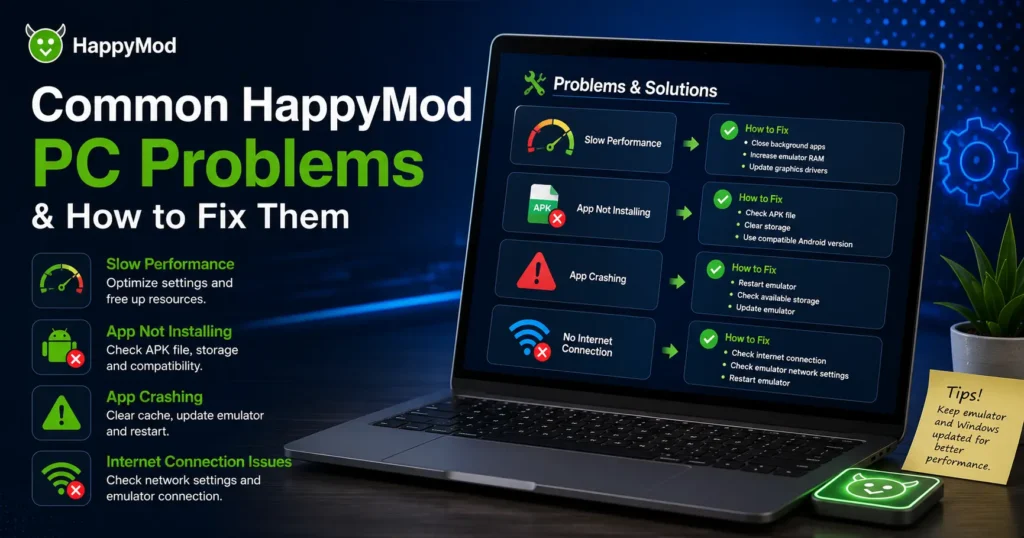
Sometimes users may face issues when running Android applications through an emulator.
Here are some common problems.
HappyMod APK Is Not Installing
If the APK does not install, possible reasons include a damaged APK file, emulator compatibility issues, not enough storage space, or an incorrect installation process. If you face additional installation problems, you can also check our HappyMod installation problems guide for more troubleshooting steps and solutions.
Try:
- Checking the APK file again
- Restarting the emulator
- Clearing emulator storage
- Using a compatible Android version
HappyMod Runs Slowly on PC
Slow performance can happen when your computer does not have enough resources.
Possible solutions:
- Close unnecessary programs
- Increase emulator memory settings
- Update graphics drivers
- Use a lighter emulator
Apps Crash Inside Emulator
If an app keeps closing:
- Restart the emulator
- Check available storage
- Update the emulator
- Try changing emulator settings
Some Android apps may also have compatibility issues depending on the Android environment.
Internet Problems Inside Emulator
If HappyMod cannot connect:
Check:
- Your internet connection
- Emulator network settings
- Firewall restrictions
Restarting the emulator often fixes temporary connection problems.
Is HappyMod Safe to Use on a PC?
When using any third-party APK platform, it is important to be careful about where files come from and what permissions an application requests. HappyMod is designed for Android applications, so using it through a PC emulator follows the same safety considerations as using it on a mobile device.
A common mistake users make is searching for “HappyMod PC installer” and downloading random Windows files. Since HappyMod is an Android application, a genuine setup normally involves an APK file used inside an Android emulator. A file that asks you to install unknown Windows software should always be checked carefully.
Before installing any APK through an emulator, consider these basic safety steps:
- Download files only from sources you trust.
- Check the APK file before installation.
- Review the permissions requested by the application.
- Avoid unknown programs that come with APK downloads.
- Keep your emulator and Windows security tools updated.
It is also important to understand that APK scanning tools can help identify potential problems, but no scanning method can guarantee that every file is completely risk-free. Users should always make informed decisions before installing third-party applications.
HappyMod on PC vs Android Phone: Which One Is Better?
Both PC and Android versions have their own advantages. The better option depends on how you want to use HappyMod.
| Feature | HappyMod on PC | HappyMod on Android |
| Screen size | Larger display | Smaller display |
| Controls | Keyboard and mouse support | Touch controls |
| Storage | Usually more available space | Depends on phone storage |
| Portability | Requires a computer | Can be used anywhere |
| Performance | Depends on PC hardware | Depends on phone hardware |
If you enjoy mobile games with detailed graphics or long playing sessions, using HappyMod through a PC emulator may feel more comfortable. A larger screen and better controls can improve the overall experience.
On the other hand, Android phones are more convenient because they are portable and do not require additional software.
How to Improve HappyMod Performance on Windows
If HappyMod feels slow or the emulator does not run smoothly, there are several ways to improve performance.
First, close unnecessary programs running in the background. Applications like browsers, editing software, or other heavy programs can reduce available system resources.
You can also adjust emulator settings. Many Android emulators allow users to increase allocated RAM, change processor settings, or adjust graphics options.
Other useful improvements include:
- Updating Windows regularly.
- Installing the latest graphics drivers.
- Keeping enough free storage space.
- Using a stable internet connection.
- Avoiding too many apps running inside the emulator.
A smoother emulator experience usually comes from balancing performance settings with your computer’s available hardware.
Can HappyMod Run on Windows 11?
Yes, HappyMod can be used on Windows 11 through an Android emulator.
Windows 11 supports many modern Android emulators, allowing users to create an Android environment on their computers. The installation process is similar to Windows 10.
However, performance can depend on your PC specifications. A newer computer with more RAM and a better processor will generally provide a smoother experience.
If you experience problems on Windows 11, check whether:
- Your emulator supports Windows 11.
- Virtualization is enabled in BIOS settings.
- Your graphics drivers are updated.
- Enough storage is available.
Frequently Asked Questions (FAQs)
1. Can I install HappyMod directly on Windows?
No, HappyMod is an Android application and does not have a native Windows version. To use it on a PC, you need an Android emulator that can run APK files.
2. Does HappyMod work on Windows 10 and Windows 11?
Yes, HappyMod can be used on both Windows 10 and Windows 11 through compatible Android emulators. The experience depends on your computer hardware and emulator settings.
3. Which emulator is best for HappyMod?
There is no single emulator that works best for everyone. BlueStacks, NoxPlayer, and MEmu are popular options, but users should choose based on their PC performance and personal needs.
4. Why is HappyMod slow on my PC?
Slow performance can happen because of limited RAM, older hardware, background applications, or incorrect emulator settings. Closing unused programs and adjusting emulator resources may help.
5. Can I play HappyMod games using a keyboard and mouse?
Yes, many Android emulators support keyboard and mouse controls. This can make some games easier to control compared with a touchscreen.
6. Is HappyMod APK safe for computers?
HappyMod itself is an Android application, so safety depends on the APK file source, permissions, and the precautions taken before installation. Users should always check files carefully and avoid unknown downloads.
Final Thoughts
Using HappyMod for PC can be a convenient option for users who want a bigger screen, improved controls, and a different way to experience Android applications. Since HappyMod is built for Android, Windows users need an Android emulator to create the required environment.
The installation process is simple: choose a suitable emulator, install it on your Windows computer, add the HappyMod APK file, and use it inside the Android interface.
However, users should always be careful when installing third-party APK files. Checking file sources, reviewing permissions, and avoiding suspicious downloads are important steps for a safer experience.
Whether you are using Windows 10 or Windows 11, an emulator can help you explore Android apps and games from your desktop while enjoying the benefits of a larger screen and better controls.